Paragraph Word Counter: The Secret Weapon for Writers Who Hate Guesswork
Print / Save as PDFInsider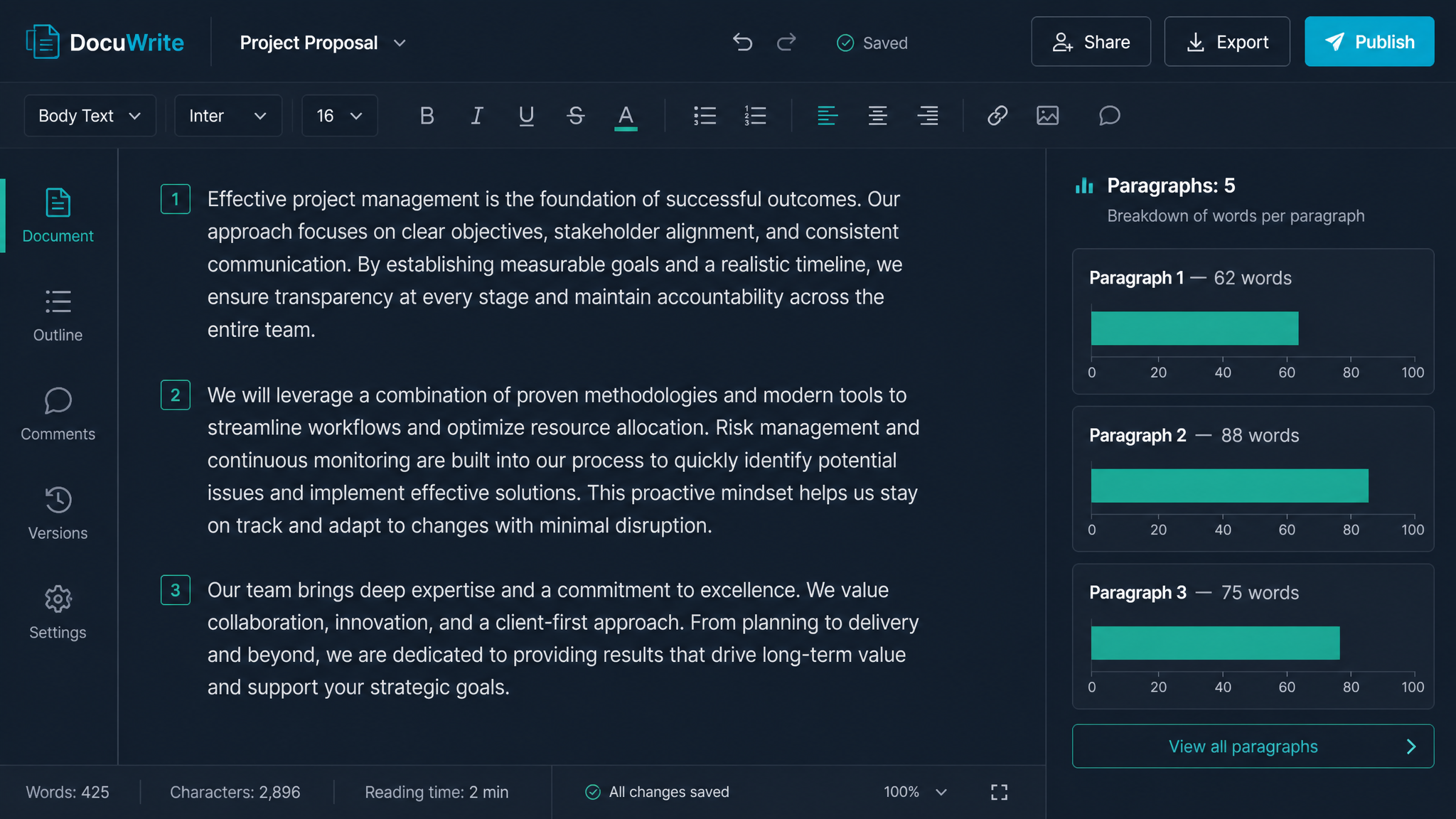
Free ebook: The Free SEO Stack
Keyword research without paying for Ahrefs — the complete guide. Read it online or download the PDF.
100% free · No spam · Unsubscribe any time
Ever been told your paragraph needs to be 'about 100 words', and then stared at your screen wondering if you’ve written enough—or way, way too much? You’re not alone. Whether you’re a student dodging the red pen, an SEO chasing the perfect snippet, or a writer trying to keep editors happy, knowing your paragraph word count is the difference between 'just right' and 'try again.'
Today, we’ll break down why paragraph word counters are more useful than you think, how to actually count words in a paragraph (without losing your sanity), and how to get those numbers fast—no squinting at Word’s status bar required.
Why Bother Counting Words in a Paragraph?
Let’s be honest: counting words in a whole document is easy. But paragraphs? That’s where the fun starts—or the frustration, if you’re the manual counting type.
How Paragraph Word Counters Work (And Why They’re Not Just for Perfectionists)
Think of a paragraph word counter as the bathroom scale for your writing: not always flattering, but brutally honest. Paste your paragraph in, hit go, and get the number—no faff, no fuss.
Modern word counter tools do more than just count words. The good ones break down:
So you get a neat little report card on your writing. Perfect for spotting that one monster paragraph lurking in your otherwise trim article.
Worked Example: Counting Paragraph Words (with a Twist)
Let’s say you’ve written this chunk of text (don’t worry, I’ve kept it short):
> This is my first paragraph. It has exactly ten words.
>
> Here’s the second paragraph. It’s a bit longer, clocking in at twelve.
If you paste both into the KeywordNumbers Paragraph Word Counter, here’s what you’d see:
| Paragraph | Word Count |
|---|---|
| 1 | 10 |
| 2 | 12 |
And if you’re in the mood for metric vs imperial (just for fun), imagine word count as measuring the weight of your writing:
It’s like weighing flour for a cake: too much, and things get dense; too little, and it falls apart.
How to Count Words in a Paragraph (Without Losing the Will to Live)
There are a few ways to count words in a paragraph, ranked from 'Why are you doing this to yourself?' to 'That’s actually clever.'
If you’re counting paragraphs for SEO or content planning, a dedicated paragraph word counter gives you the full breakdown, fast. Like a chef’s knife for bulk prep—sharp, efficient, and saves your fingers.
When Should You Use a Paragraph Word Counter?
Questions People Are Actually Asking
How to write a counter paragraph?
A 'counter paragraph' usually means a paragraph that presents an opposing view or argument in an essay. If you’re after a paragraph word counter, just paste your paragraph into a word counter tool to see the word count instantly.
How to count paragraphs in Word?
In Microsoft Word, you can count paragraphs by clicking "Word Count" under the Review tab. The dialogue box shows the number of paragraphs, words, characters, and more. No need for manual counting—Word does the heavy lifting.
How to word count a specific paragraph?
Highlight the paragraph you want to count. In Word or Google Docs, the word count for just that section will show up. Or, for a faster option, paste it into an online word counter and get the exact number.
How to count words in a paragraph?
The easiest way is to use an online word counter—copy and paste your paragraph, and you’ll see the word count instantly. If you prefer manual counting (not recommended), count each word one by one. Most modern editors and word processors have built-in counters for selected text.
How to check paragraph word count?
Copy the paragraph, visit a word counter tool, paste, and you’ll see the word count in seconds. For in-document checking, highlight the paragraph and check the status bar in your word processor.
How to count number of words in a paragraph manually?
Count each word in the paragraph, one at a time. Every group of letters separated by a space counts as a word. Double-check your count for accuracy, or save time and use a word counter tool.
How to paragraph in Word?
To start a new paragraph in Microsoft Word, just hit the Enter key. To adjust paragraph formatting—like spacing or indents—use the Paragraph section in the Home tab (look for the A-shaped icons and line spacing tools).
Conclusion: Stop Guessing—Start Counting
Counting words in a paragraph shouldn’t feel like doing taxes. If you’re tired of guessing or fiddling with your editor, try the KeywordNumbers Paragraph Word Counter. It’s the measuring cup for your writing—fast, accurate, and always ready to call your bluff if you’ve waffled on too long.
Give it a go, and spend less time counting words—and more time writing them.
Free tools to put this into practice
Reading is one thing — testing your own pages is what moves the needle. Here are the free KeywordNumbers tools that pair best with this guide:
Every one of our free SEO tools is genuinely free to use, with no sign-up required.
Free ebook: The Free SEO Stack
Keyword research without paying for Ahrefs — the complete guide. Read it online or download the PDF.
- Which free tools replace Ahrefs, SEMrush & Moz
- Step-by-step keyword research workflow
- How to find content gaps without paying a penny
- The exact stack KeywordNumbers is built on
100% free · No spam · Unsubscribe any time
Ready to research your keywords?
Try our free keyword tools — no signup required.