OG Preview: How to See Exactly What Your Page Looks Like on Social Media (Before It’s Too Late)
Print / Save as PDFInsider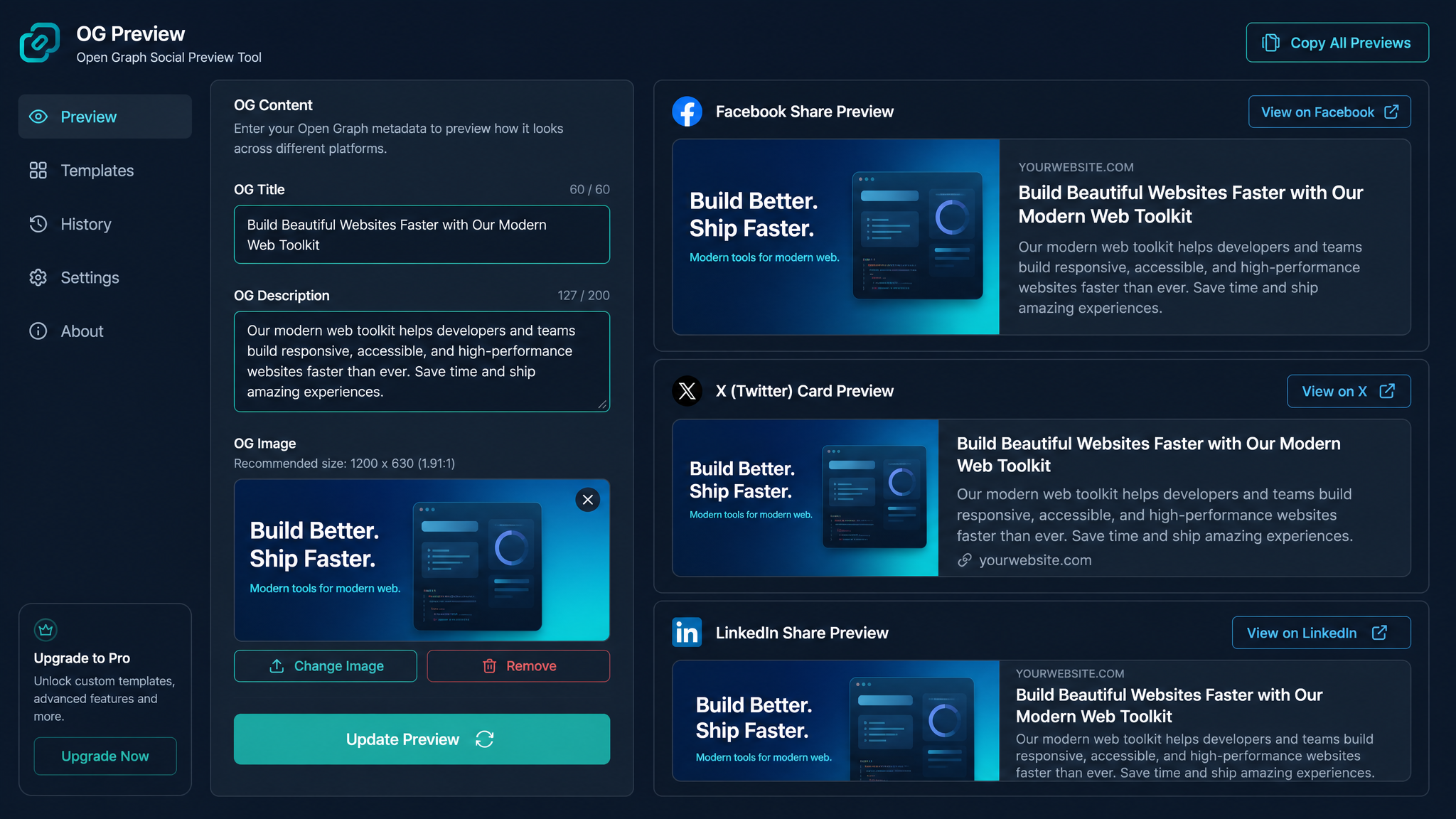
Free ebook: The Free SEO Stack
Keyword research without paying for Ahrefs — the complete guide. Read it online or download the PDF.
100% free · No spam · Unsubscribe any time
Ever posted a link only to see Facebook pick a blurry image and Twitter/X chop your headline in half? Welcome to the wild world of OG (Open Graph) previews, where what you think you’re sharing and what actually appears in feeds are often as different as a passport photo and a dating profile pic. Let’s fix that.
OG Preview: The Crystal Ball for Your Social Shares
Here’s what most people miss: Those little boxes that pop up when you share a link? They’re not magic. Social media platforms use meta tags—think of them as sticky labels on your HTML—to decide what gets shown: title, image, description, the works. The OG preview is your sneak peek at this digital shop window.
Previewing isn’t just vanity; it’s tactical. You get to:
Why OG Previews Aren’t Just for Control Freaks
Quick question: Would you let someone else pick your outfit for a job interview? Of course not. Same logic applies here. Each social platform has its own quirks—like a buffet with different plates for each guest—so a quick OG check stops your content turning up in the wrong trousers.
You get:
How OG Previews Actually Work (No Crystal Ball Required)
When someone shares your page, the social platform’s bots come sniffing for specific meta tags. Here’s your cheat sheet:
og:title – Your page’s headline, served up on a silver platterog:description – A juicy summaryog:image – The eye-candy (must be a full URL, not just "/image.jpg")og:url – The official, canonical linktwitter:card – What flavour of preview (summary, large image, etc)twitter:title, twitter:description, twitter:image – The same basics, but in Twitter lingoPreviewing Your Page: The No-Facepalm Method
Bet you didn’t realise—guesswork is optional. There’s a free OG Preview Tool on KeywordNumbers.com that lets you preview how your page will appear on Facebook, Twitter/X, LinkedIn, and beyond. All in one go, all in your browser.
Example: A Real-World OG Preview Test
Let’s say you’ve poured your soul into a post called "10 Best Hiking Trails" at https://yoursite.com/hiking-trails. You want it to look gorgeous everywhere. So, you set up your tags like so:
`html
`
Worked Example: Making Units Crystal Clear
Let’s break this down like a hiking snack:
| Trail Name | Distance (km) | Distance (mi) |
|---|---|---|
| South Downs Way | 160 | 99.4 |
| Ben Nevis Path | 17 | 10.6 |
When your OG description includes both metric and imperial, you’re speaking everyone’s language—UK, US, anywhere with legs. Run this example through the OG Preview Tool and you’ll see exactly how each network frames your handiwork.
Platform Quirks: Why One Size Never Fits All
Here’s the awkward family photo bit: every platform crops, trims, or rewrites your tags in its own special way. Don’t get caught out—use this cheat sheet:
| Platform | Image Size (pixels) | Description Length | Title Length |
|---|---|---|---|
| 1200 x 630 (recommended) | Up to ~110 characters | Up to ~60 chars | |
| Twitter/X | 1200 x 628 (large card) | Up to ~70 characters | Up to ~70 chars |
| 1200 x 627 | Up to ~150 characters | Up to ~70 chars |
OG Preview Problems: Diagnosed and Sorted
Things not showing right? Don’t panic—here’s the first-aid kit:
og:image uses a full URL (starting with https://), not a relative path.Try It Now: OG Preview Tool (No Guessing, Just Results)
Don’t leave your brand’s first impression to chance. Test your OG tags for all the big players instantly at the OG Preview Tool on KeywordNumbers.com. Pop in your URL, see the real deal—no awkward surprises when you hit ‘post’.
Questions people are actually asking
How do I preview my website’s OG tags for Facebook, Twitter, and LinkedIn?
Easy win: use a free OG preview tool like the one on KeywordNumbers.com. Pop in your URL and you’ll get side-by-side previews for all the big platforms—no psychic abilities required.
What image size should I use for OG previews?
Aim for at least 1200 x 630 pixels. That keeps your images looking sharp for Facebook, Twitter/X, and LinkedIn. Go bigger, not smaller—upscaling a thumbnail never ends well.
Why is my OG image or description not showing correctly?
First, double-check your meta tags for typos and make sure image URLs are absolute (full links starting with https://). Then clear the platform’s cache using their debug tools—sometimes the old version is just stuck in memory.
Can I see how my page will look on Twitter/X specifically?
Absolutely. OG preview tools (like ours) show Twitter/X cards, including both summary and large image styles. Or, for the belt-and-braces approach, use Twitter’s Card Validator for a real-time check.
Do I need separate meta tags for each platform?
Generally, OG tags cover Facebook, LinkedIn, and friends. For Twitter/X, add twitter: tags to fine-tune your preview. If you skip them, Twitter/X usually falls back to your OG tags anyway—just less predictably.
How can I update my OG preview after changing my tags?
Update your meta tags, then visit the platform’s debug tool (like Facebook’s Sharing Debugger) to flush their cache. After that, preview again to make sure the change has stuck.
What happens if I don’t set OG tags on my page?
Brace for chaos: social platforms will cobble together previews from whatever scraps they find. That means random images, truncated text, and a brand impression nobody wants. Set your tags, stay in control.
Previewing your OG tags isn’t just a nice-to-have—it’s the difference between looking slick and looking slapped together. Try the OG Preview Tool now and make sure your next share turns heads (for all the right reasons).
Free tools to put this into practice
Reading is grand. Actually testing your own pages—that’s what gets you results. Here are the free KeywordNumbers tools that go hand-in-glove with this guide:
Every one of our free SEO tools is genuinely free, no email or sign-up faff required.
Free ebook: The Free SEO Stack
Keyword research without paying for Ahrefs — the complete guide. Read it online or download the PDF.
- Which free tools replace Ahrefs, SEMrush & Moz
- Step-by-step keyword research workflow
- How to find content gaps without paying a penny
- The exact stack KeywordNumbers is built on
100% free · No spam · Unsubscribe any time
Ready to research your keywords?
Try our free keyword tools — no signup required.